
Why Custom Fields?
One of the most useful things we have in Heartland pertaining to items is custom fields. This is how we can track what is moving in our store, what product struggles, and where we should focus our efforts. For example, let's say we want to track which LEGO® theme sells best, you can use custom fields for that. If you want to see how often customers come to your store because of advertising, you can do that with custom fields. If there is any information you want to collect and track, custom fields can probably do it if it's not already in the system.
For Bricks & Minifigs specific custom item category standards check out this article: Bricks & Minifigs Heartland Items Standards
How To
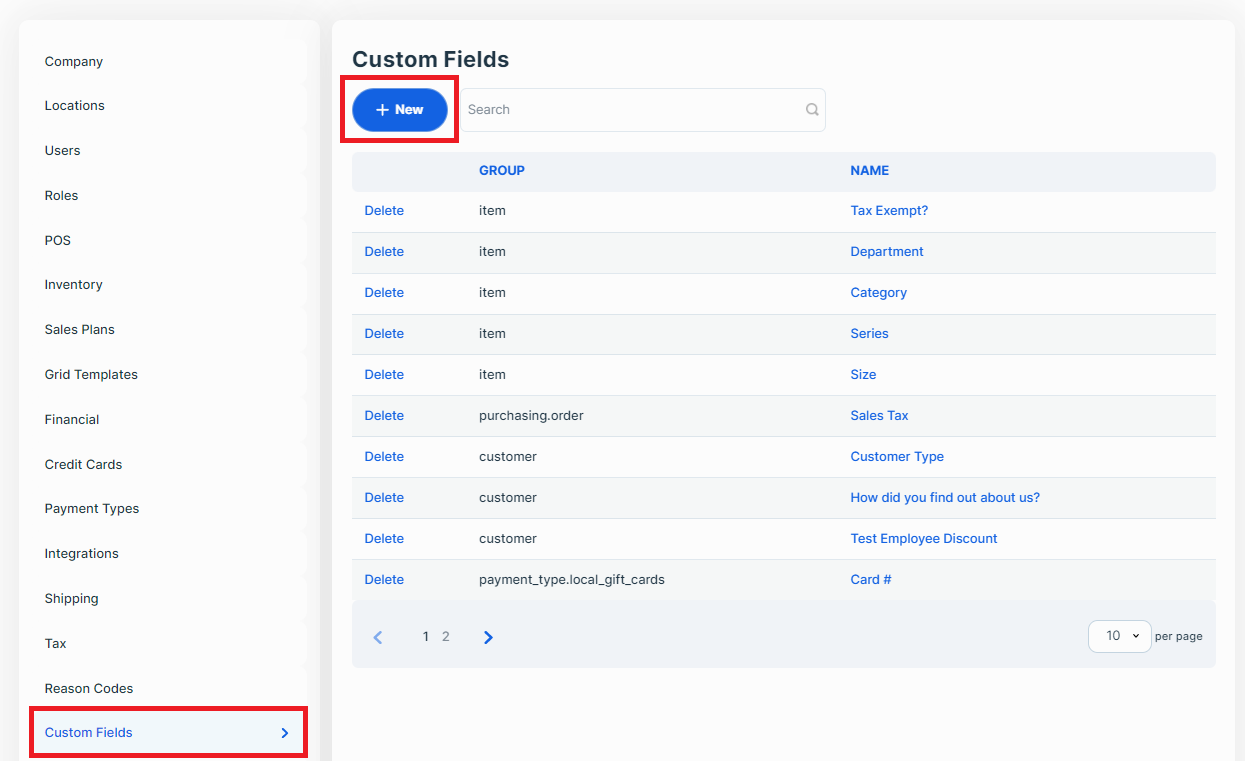
To create a custom field, go into your Heartland backend settings. There will be a menu item called “Custom Fields” which will give you a list of all your current custom fields as well as a big blue “+ New” button. Click it to start making your custom field.
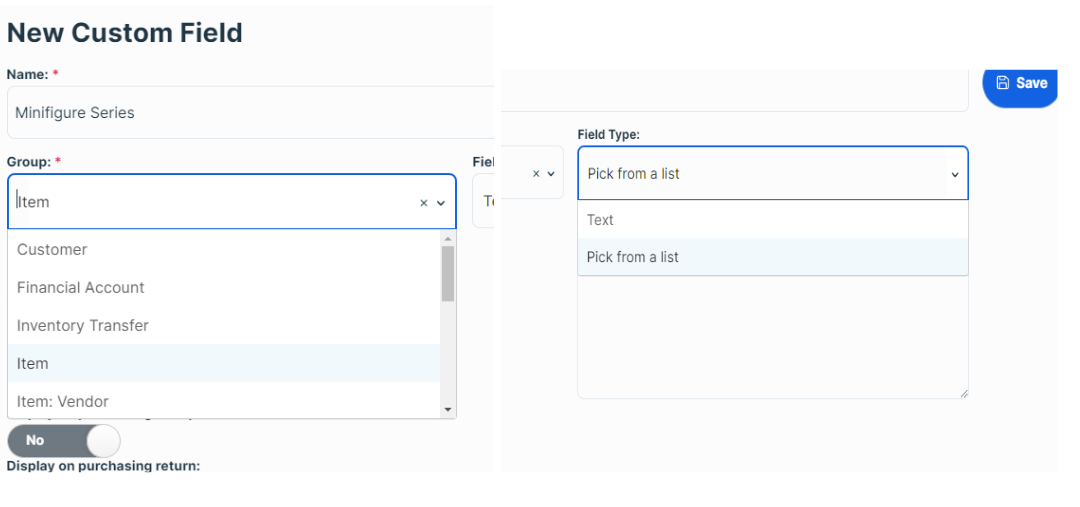
Give the field a name and then we will select what the field applies to with the drop-down group menu. If you want to add a field to an item, choose “Item”, then select the type of input you want. **See images below for clarification** In most cases, you want to have the “Pick from a list” option selected for easy data sorting. If you have the option “Text” Selected it will allow for any input you/your employee wants to put in which can make reporting a bit messy. It is useful in some cases though.
Custom Field Specifics
If you choose to do the “Pick from a list” field type you will need to add in all the options that apply to the field. As an example, the corporate required “Department” custom field has seven options: Aftermarket, Bulk, Minifigs, Miscellaneous, New Sets, Parties/Events, and Used Sets.
Below the two dropdowns, you have some toggle switches that change if it is required, if it needs to have a unique input value (only for when the field type is text input), and whether or not it's visible in certain places. Those can be turned on or off depending on what you need. The department custom field should have the toggle switch for “Required” turned on because we want every item to have its department specified.
How Do You Want To Use It?
Useful custom field groups:
- Items: for all things relating to items
- Customer: for all things related to customers
Have the aftermarket brands as a custom field as written in the approved vendor's list
Have all the LEGO themes in a custom field
Have specific custom fields for miscellaneous item types you want to track (i.e. food/drink)
Have a "Retired NIB" category to see if you get more customers for older or current NIB
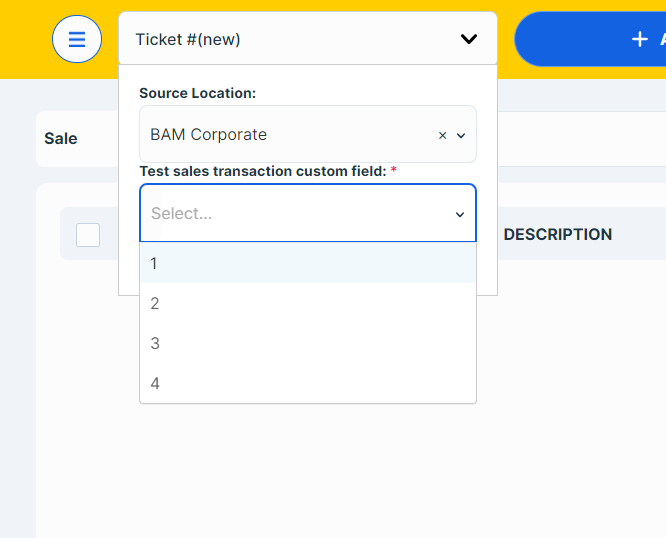
- Sales Transaction: Applied to the ticket when processed (Can be found when pressing the ticket drop down on the pos screen) **see image below for clarification**
Here is a video about creating custom fields: Creating custom fields