
STEP 12 - CHANGE YOUR HOMEPAGE
The final step to finishing the page is changing the landing page to the home page instead of the coming soon page.
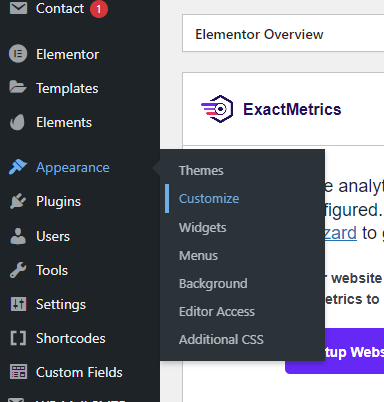
From the website dashboard, find “Appearance” on the left-hand menu. Hovering over it you should see a menu item “Customize” pop up. Click on it to pull up the site appearance settings.
After clicking on it the screen should look similar to this:
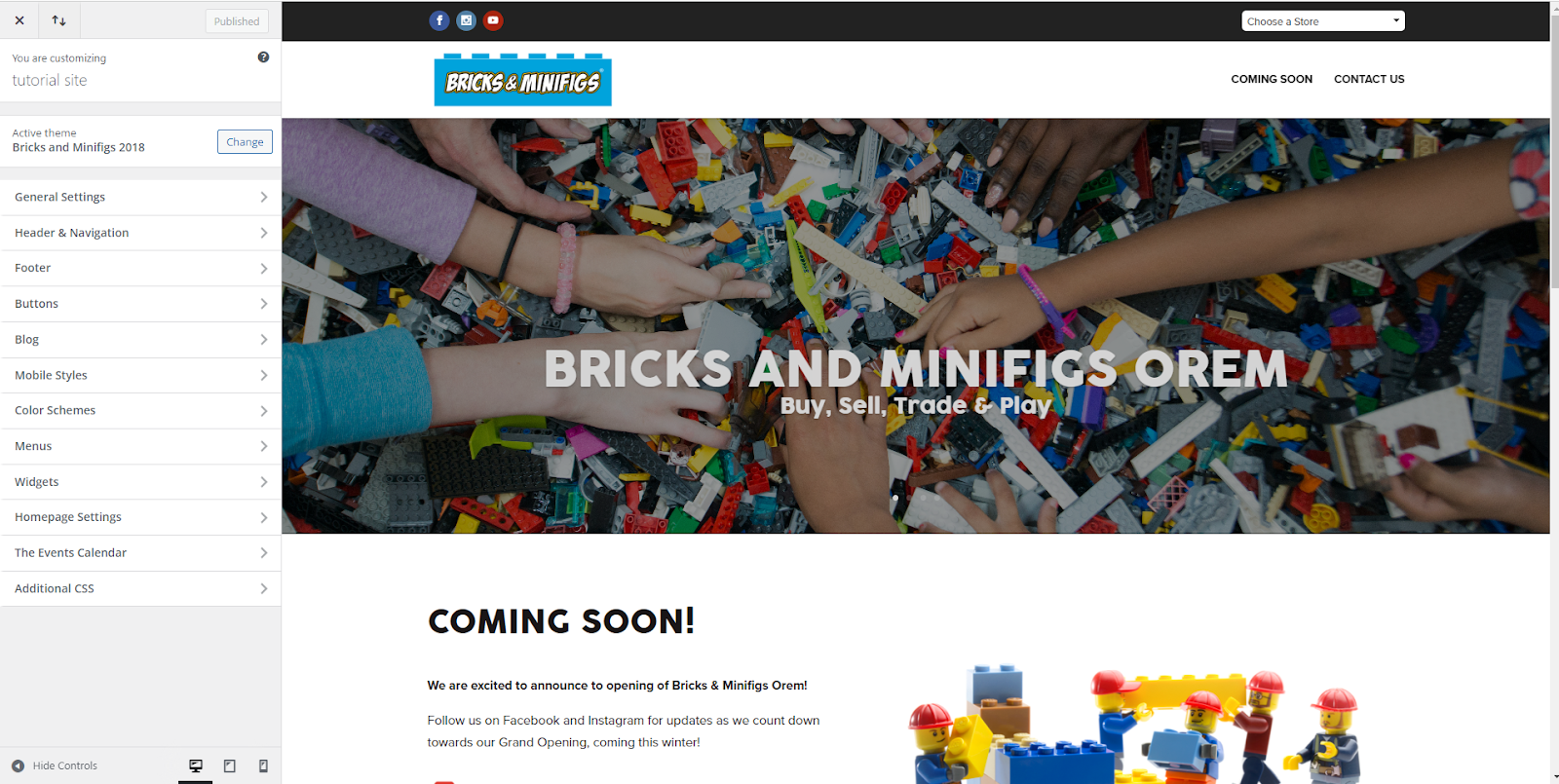
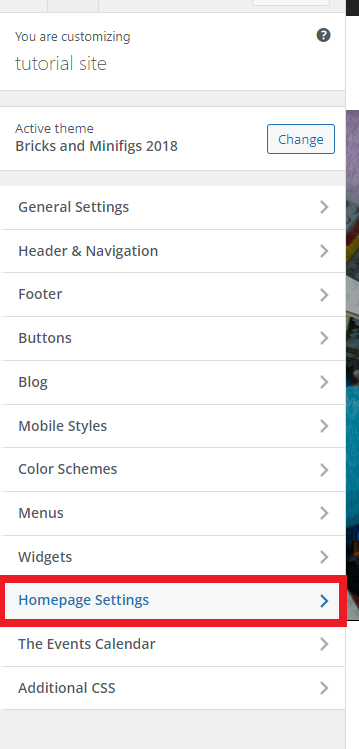
On the left-hand side is your customization menu. The one we want to edit is the home page settings. Locate and click on it.
You will see the following settings:
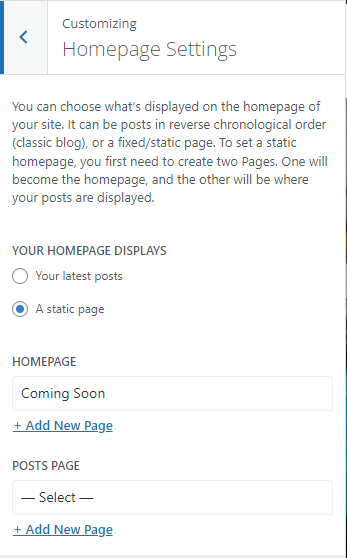
“YOUR HOMEPAGE DISPLAYS” should always be set to a static page. The box under “HOMEPAGE” is where we will set which page is the landing page for the site. Click on the box, then find “Home” in the dropdown and select it
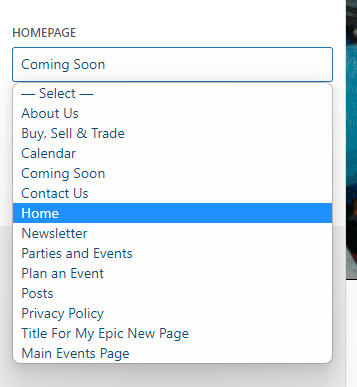
It should now say “Home” under “HOMEPAGE”
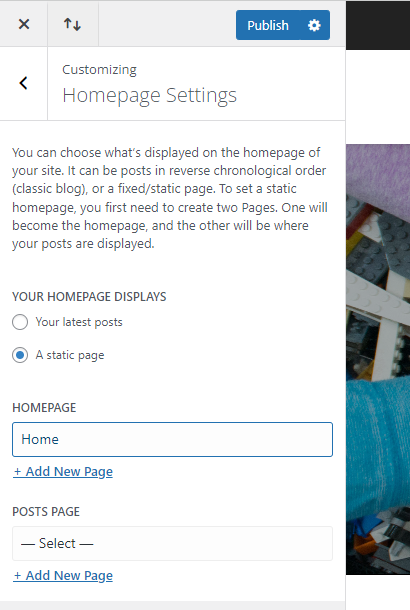
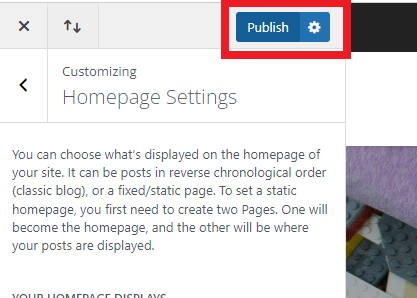
Once you have changed the homepage, click publish in the top right of the menu.
Now, if you visit your site you should see that your landing page is no longer the coming soon page.
Congratulations, your full website is officially up and running!
Just because you have “finished the final setup” of your website doesn't mean you can't go back and change/add things. Whenever you do, make sure to reach out to @support to review the changes!