STEP 11 - EDIT YOUR MENU
!! Do not complete this step until your site has been reviewed and approved !!
From your website dashboard, find and hover over “Appearance” in the menu option on the left side of the page. It will have a paintbrush next to it. From the options that pop up next to it click on “Menus”
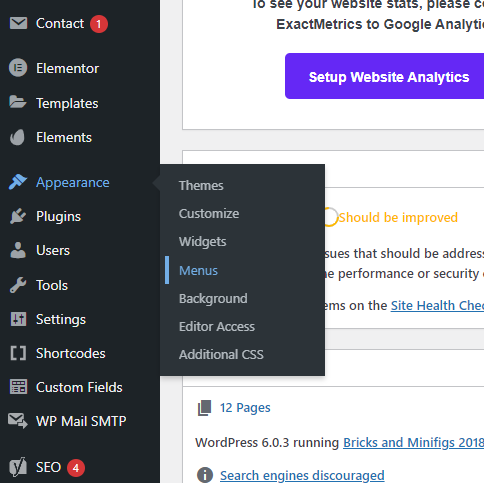
This will take you to the menu customization page.
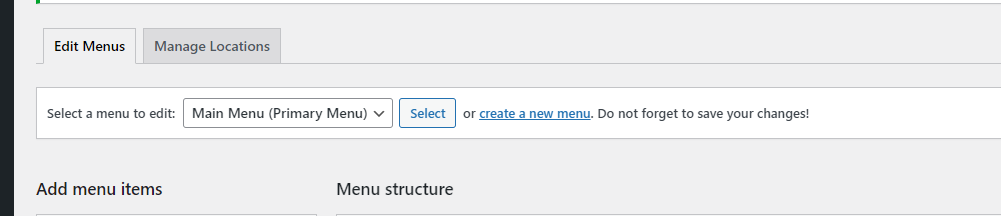
To the right of where it says “Select a menu to edit” make sure “Main Menu (Primary Menu)” is selected in the dropdown box, then click “Select”
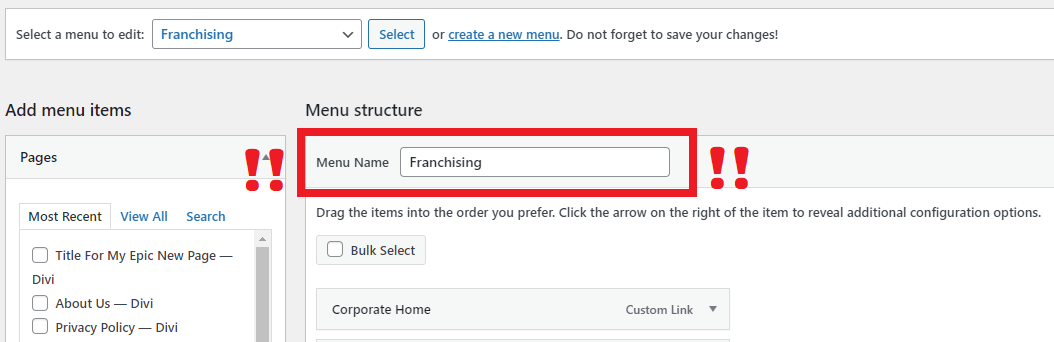
!! Do not edit the menu if it says franchising next to “Menu Name” !!
When you have it set to “Main Menu” you should see something like this:
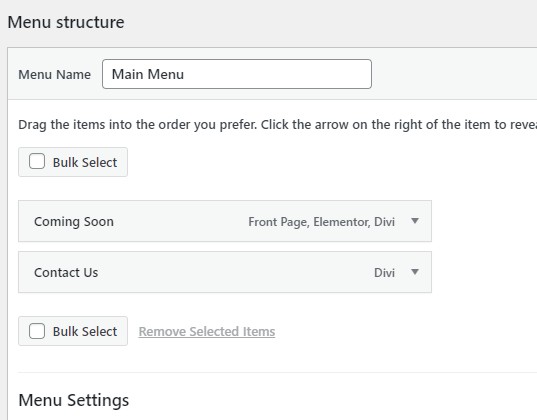
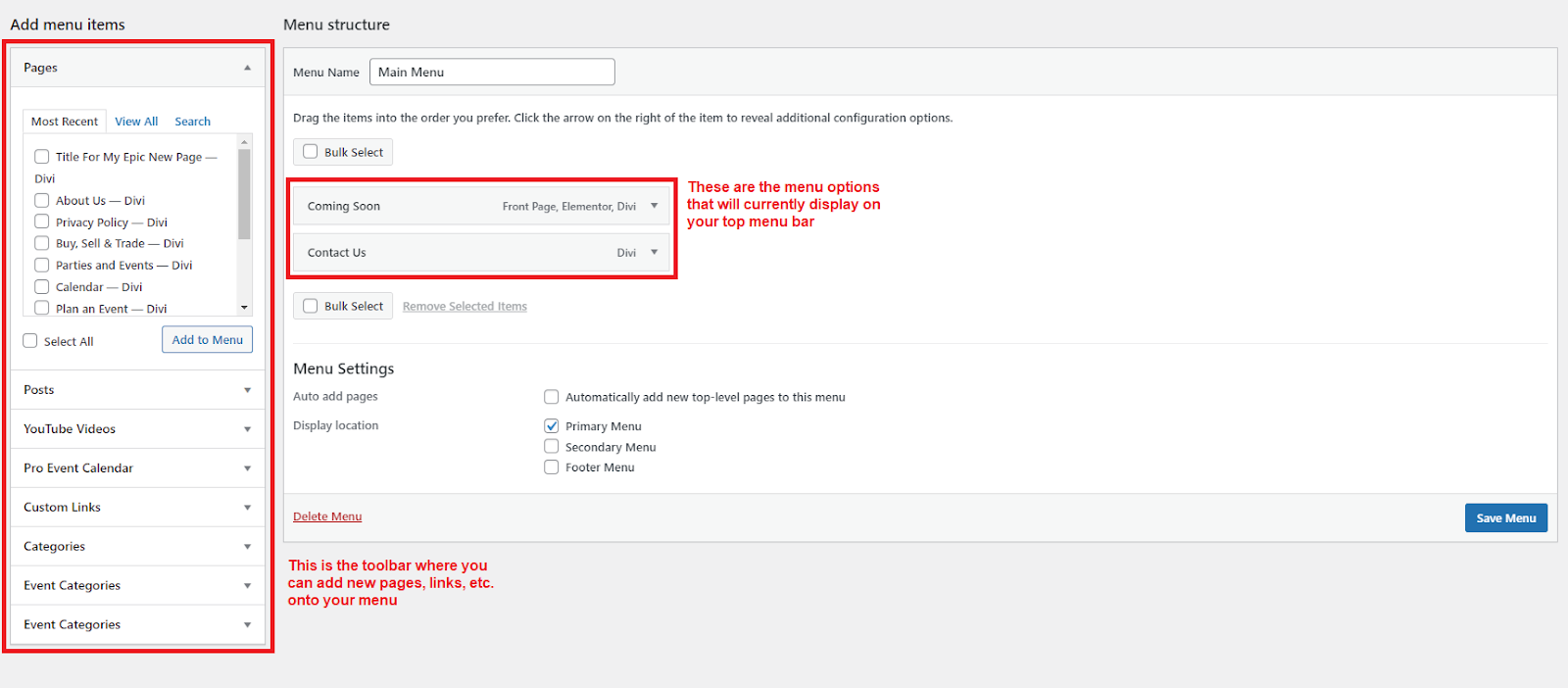
The gray boxes are your menu options, to the left of them you have the other pages on your site which you can add to your menu as well as more tools to add things like external links.
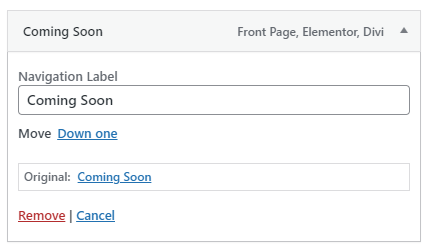
To remove a page from your menu, click the dropdown arrow on the right-hand side of it

This will pull up a more detailed view of the menu item. Click the red “Remove” to remove it.
To add a page to your menu, find it in the list on the left side and select it.
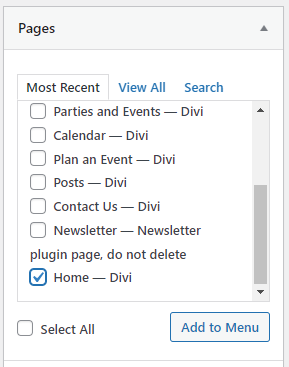
If your page doesn't show up, it may not be considered a “Recent” page, try switching to the “view all tab” and it should show up
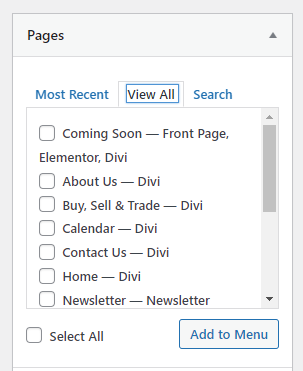
Once you have the page/pages you want to add, click the “Add to Menu” button
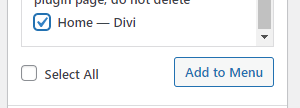
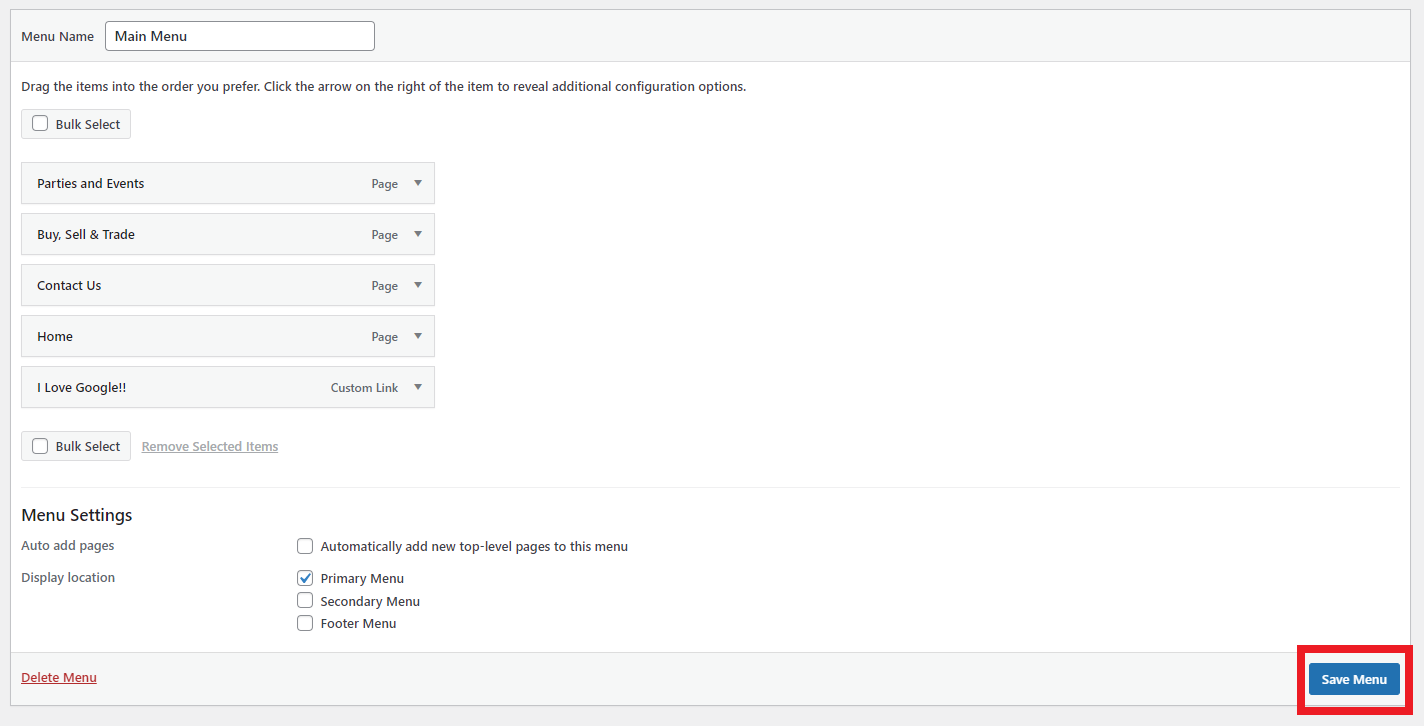
The pages we suggest having on your menu for your full website are Home, Parties and Events, Buy, Sell & Trade, and Contact Us. If you have other pages you want to add to your menu and didn't get them reviewed in step 10, make sure to get them approved before adding them to the menu.
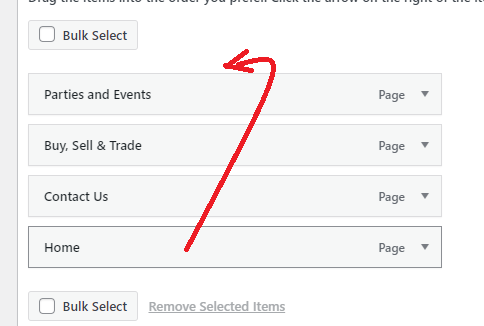
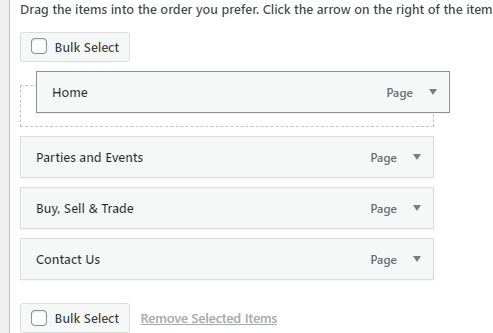
The menu items will show up on your website in the order they are listed on this page. You can reorder them by dragging and dropping them where you want.
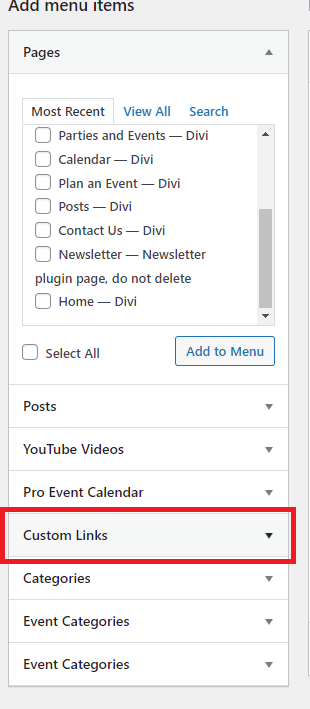
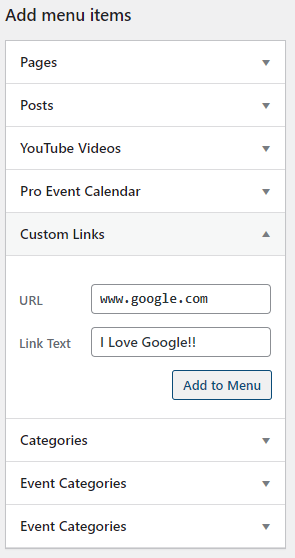
If you want to add a link to your menu that takes you off-site, you can do that too! On the left-hand menu click on “Custom Links” then fill out the link information and click “Add to Menu”
It will now be listed as a menu item. If you need to edit it you can click the little arrow next to it, which will pull up the link customization settings. If you have an eCommerce store, this is a great way to add it to your website.
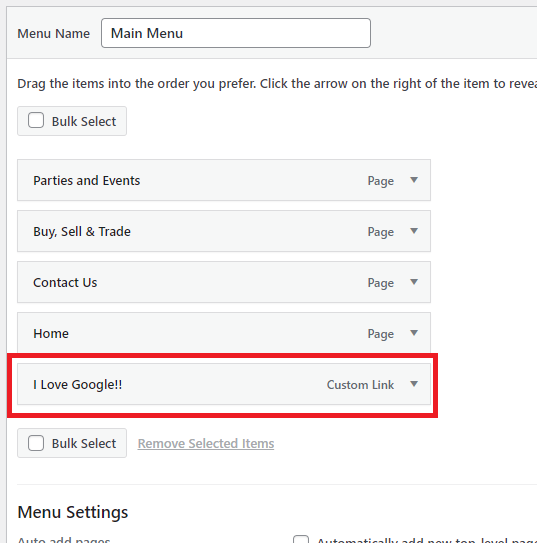
Once you have set up the menu the way you want, click the “Save Menu” button in the bottom right corner of the page.