
STEP 1 - EDIT THE PICTURE AND HEADER TITLE AT THE TOP OF THE HOME PAGE
From the “View All Pages” page click “Edit With Divi” under the “Home” page.

The page that comes up will look similar to your coming soon page, and just like the coming soon page, We will need to edit the top banner so that your store name is on each slide.
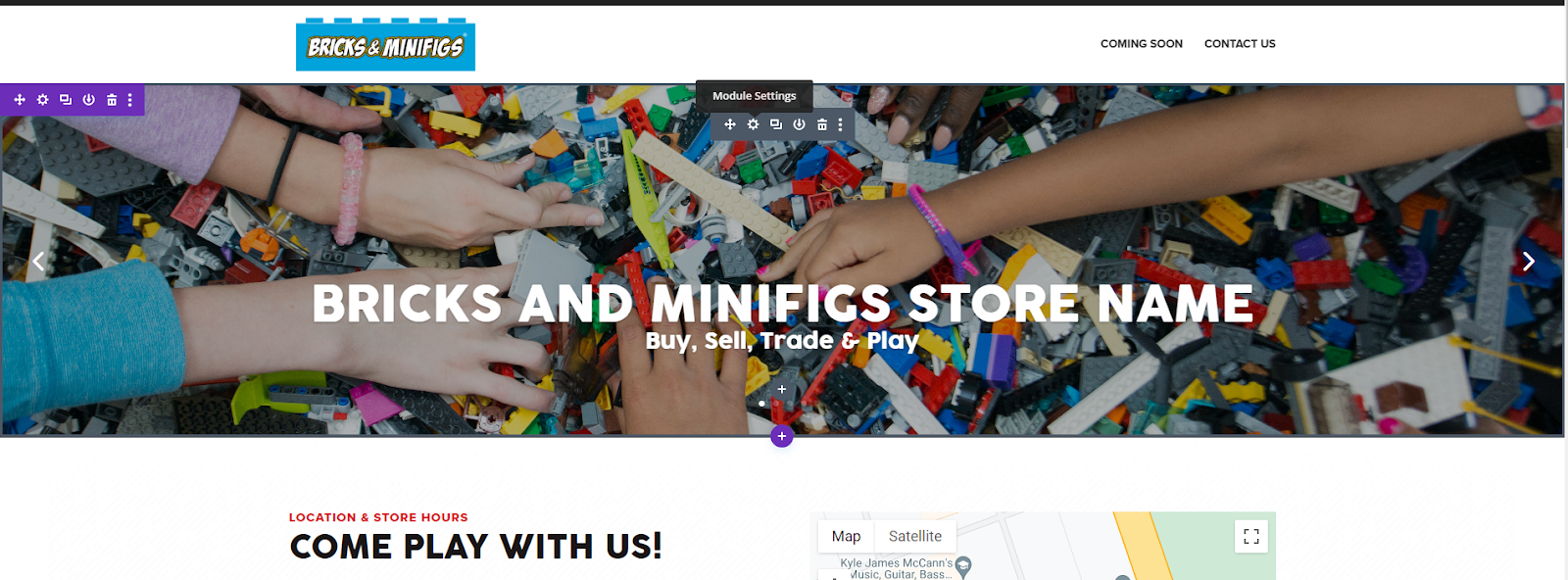
Hover over the banner image and click on the gear symbol (second from the left) in the gray box:
That should open up the following pop-up box called “Fullwidth Slider Settings. Click on the gear to the left of any of the “Bricks and Minifigs STORE NAME” boxes:
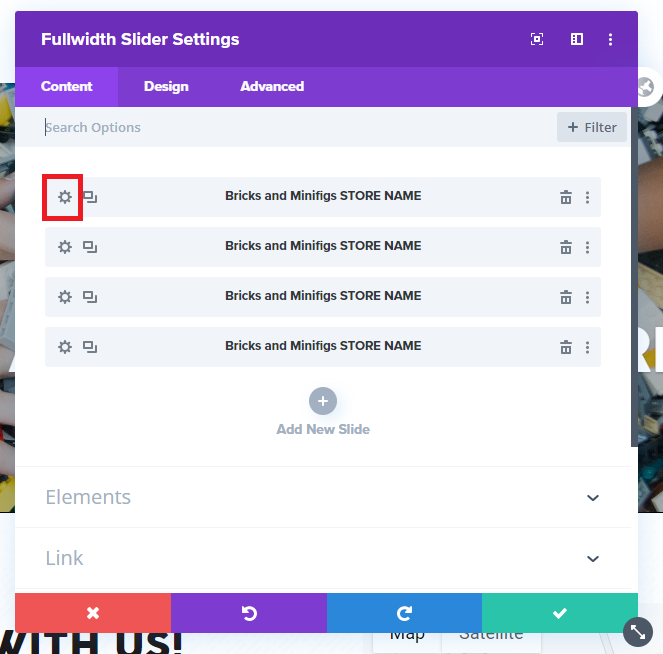
Edit the store name here under where it says Title. From there scroll down on the pop-up until you see the section that says Background, click on Background.
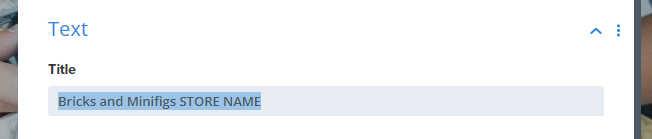


From there click on the picture that shows up, and it should open your media library. As this will be your full site homepage, please at least make sure to have a photo representative of your store as the background. That can be an image of your storefront, inside the store, etc. If you need to wait until closer to opening to get these images because of store buildout, change the text and continue to the next step.
Once you have completed the first slide, go through and edit all the slides. When choosing photos make sure they are high enough quality that they do not look grainy on a computer browser.
Once you have changed the photos and text save your work!