
STEP 0 - ACCESSING ALL YOUR PAGES
From your WP dashboard navigate to “All Pages” from the menu on the left-hand side of the page.
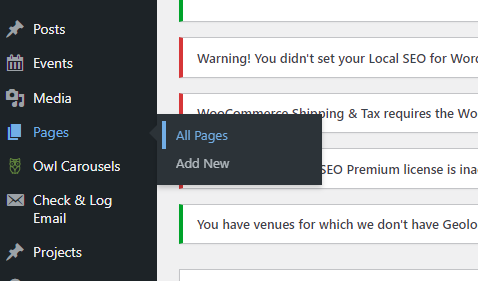
This will pull up a list of all the premade pages on your website. Here is a little breakdown of each page:
About Us: A page you can use to write a little bit about you and your story with BAM. The page gives an example of the McNeffs when they operated the Orem store
Buy, Sell & Trade: This page describes what a Bricks & Minifigs does.
Coming Soon: The coming soon landing page you have already edited
Contact Us: A form for people to contact you via your store email
Home: The landing page for your full site
Newsletter: The newsletter page, don't worry about this one
Parties and Events: This page describes the parties and events people can book at your location, it will need to be edited to the parties and events your store holds.
Plan an Event: Page you can use to have people book events if you don't use an external booking program. It's just a form so it has no double booking prevention and comes to you via email, so it's worth looking into the external booking programs to reduce your workload.
Posts: If you decide to do a blog…
Privacy Policy: Copy of the corporate website privacy policy, do not delete this page.
When you hover over a page you will see a few options pop up under it. The two you will use the most are “Quick Edit” and “Edit With Divi.” The “View” option lets you view your page like normal.

Steps one, four, seven, and eight will start from this page.