
Introduction
The Heartland reporting system is extremely useful, however, its applications are heavily dependent on how well you categorize important data. Because of this, as a brand, we are continually seeking greater Heartland standardization. Standardizing Heartland vendors is one of the first steps in having a clean heartland inventory system. This article explains the BAM Heartland vendor standards.
Vendor import sheet
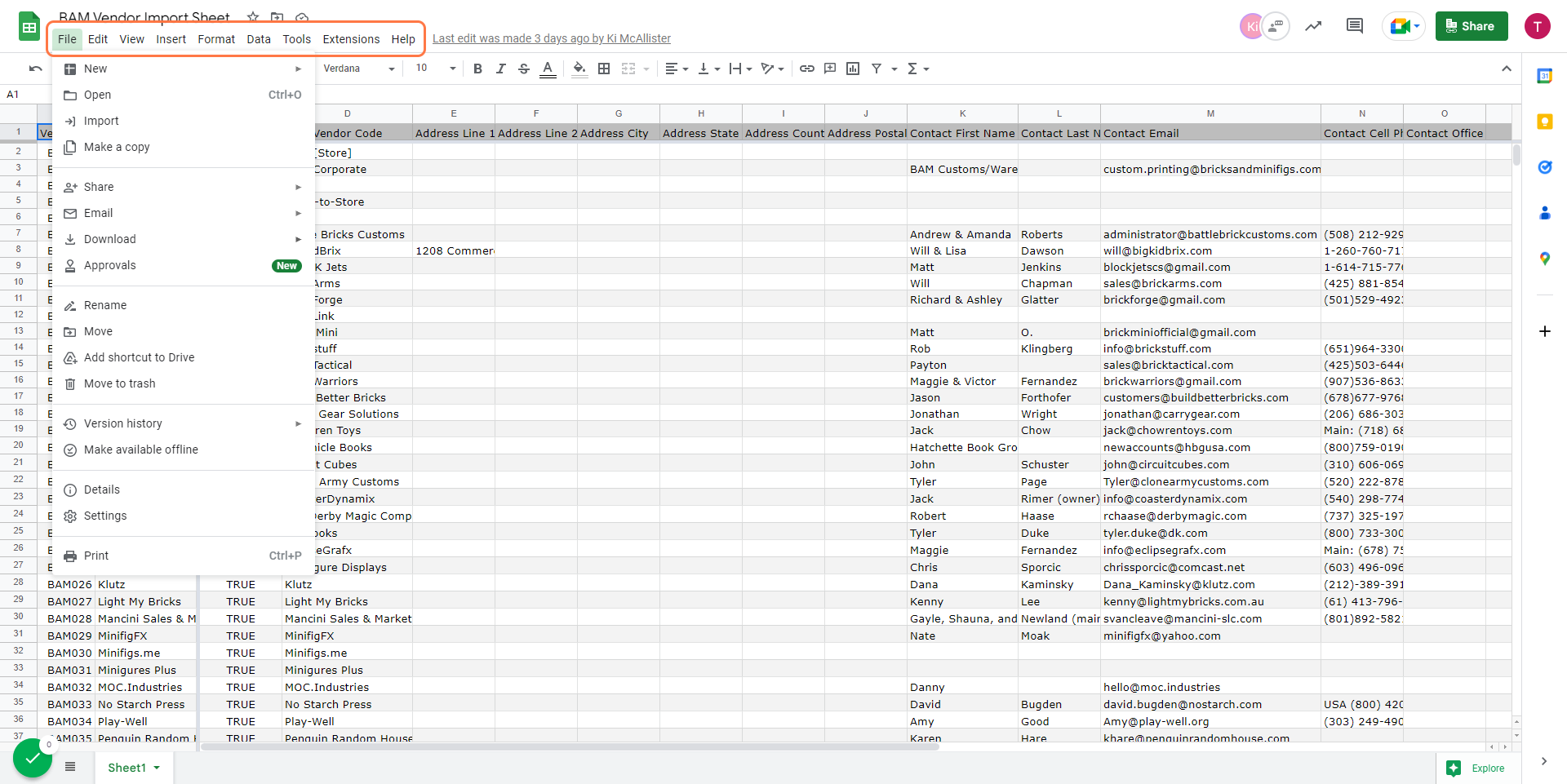
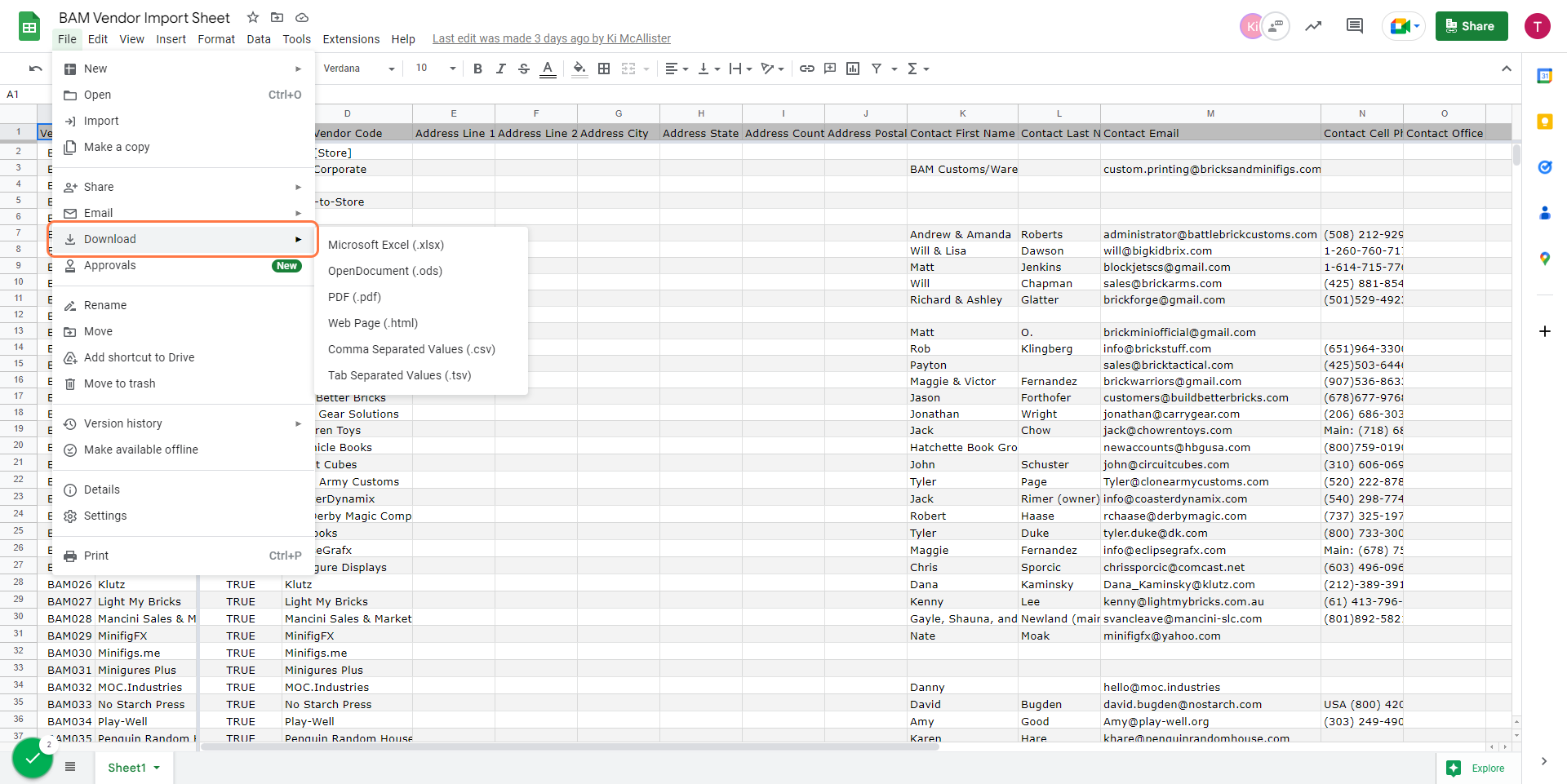
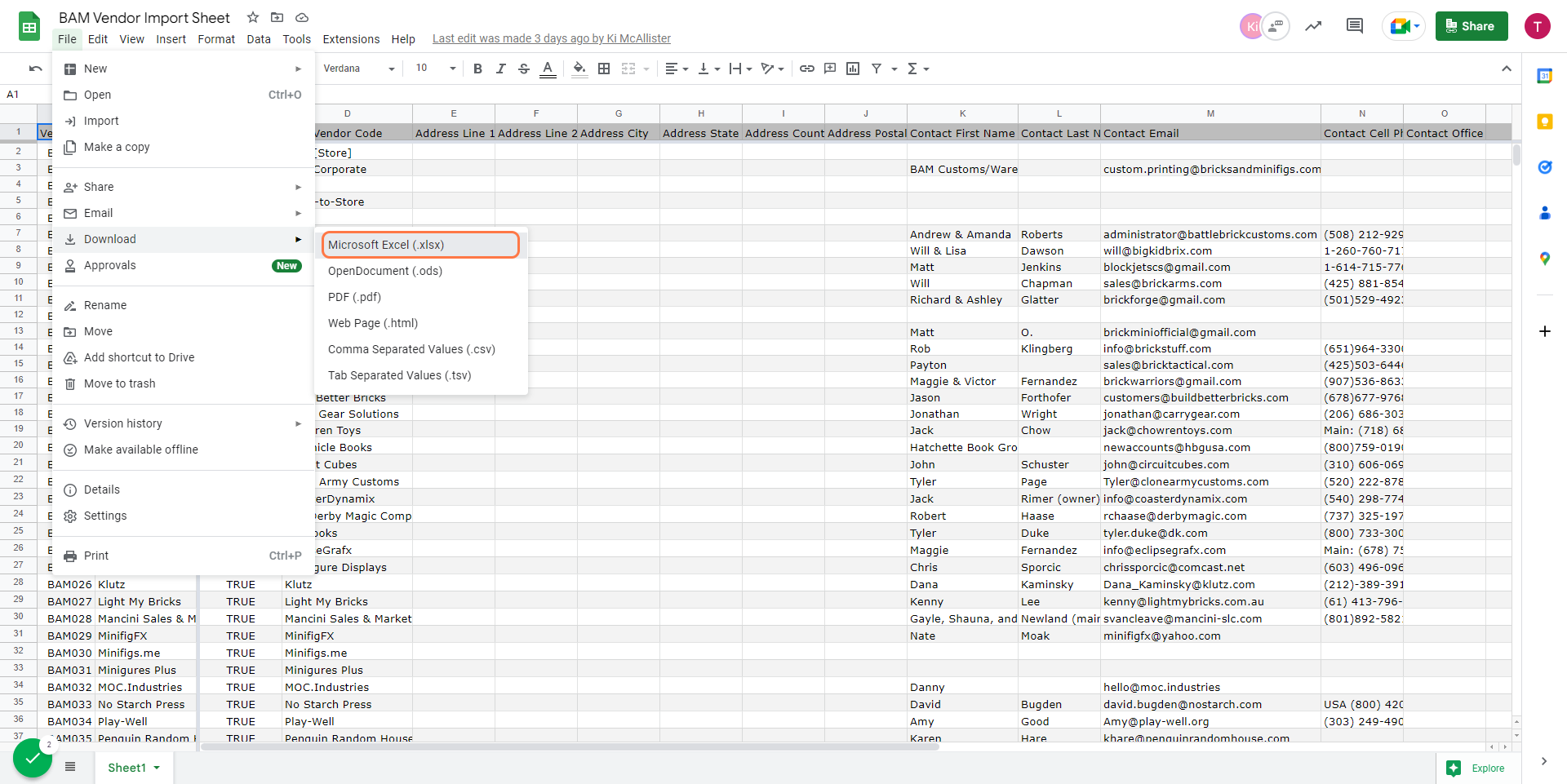
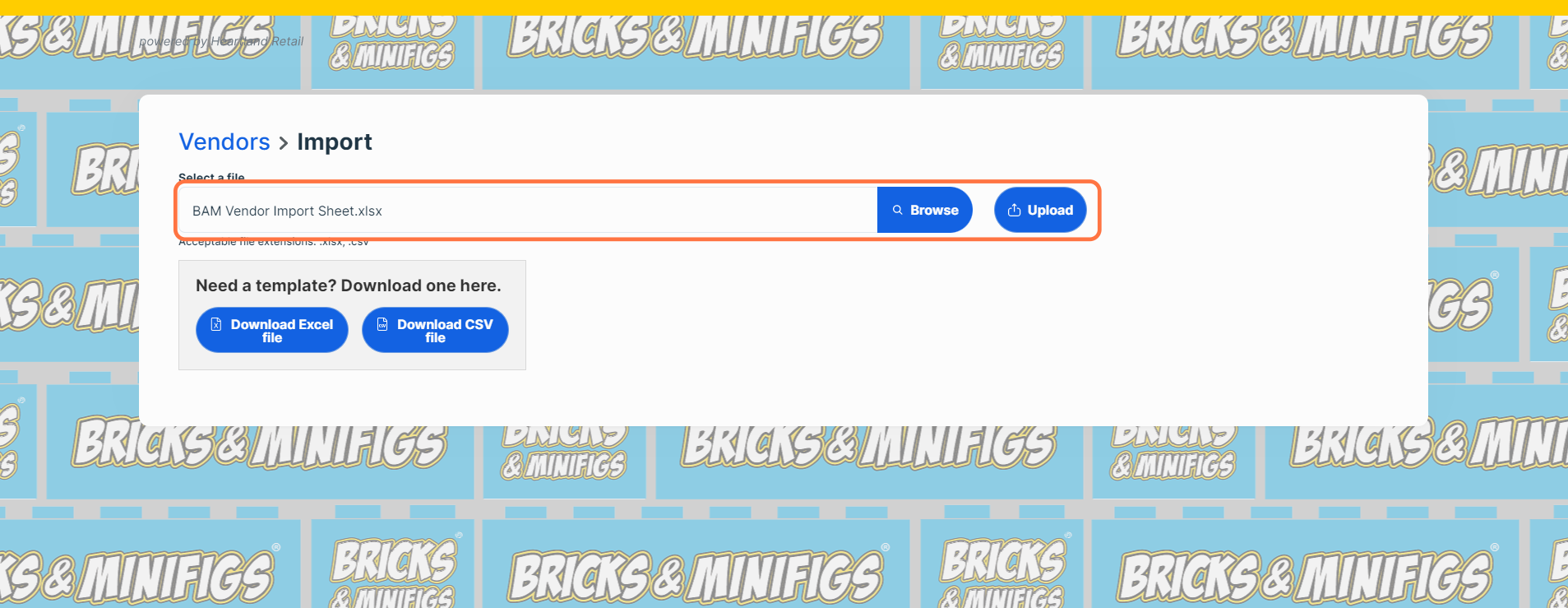
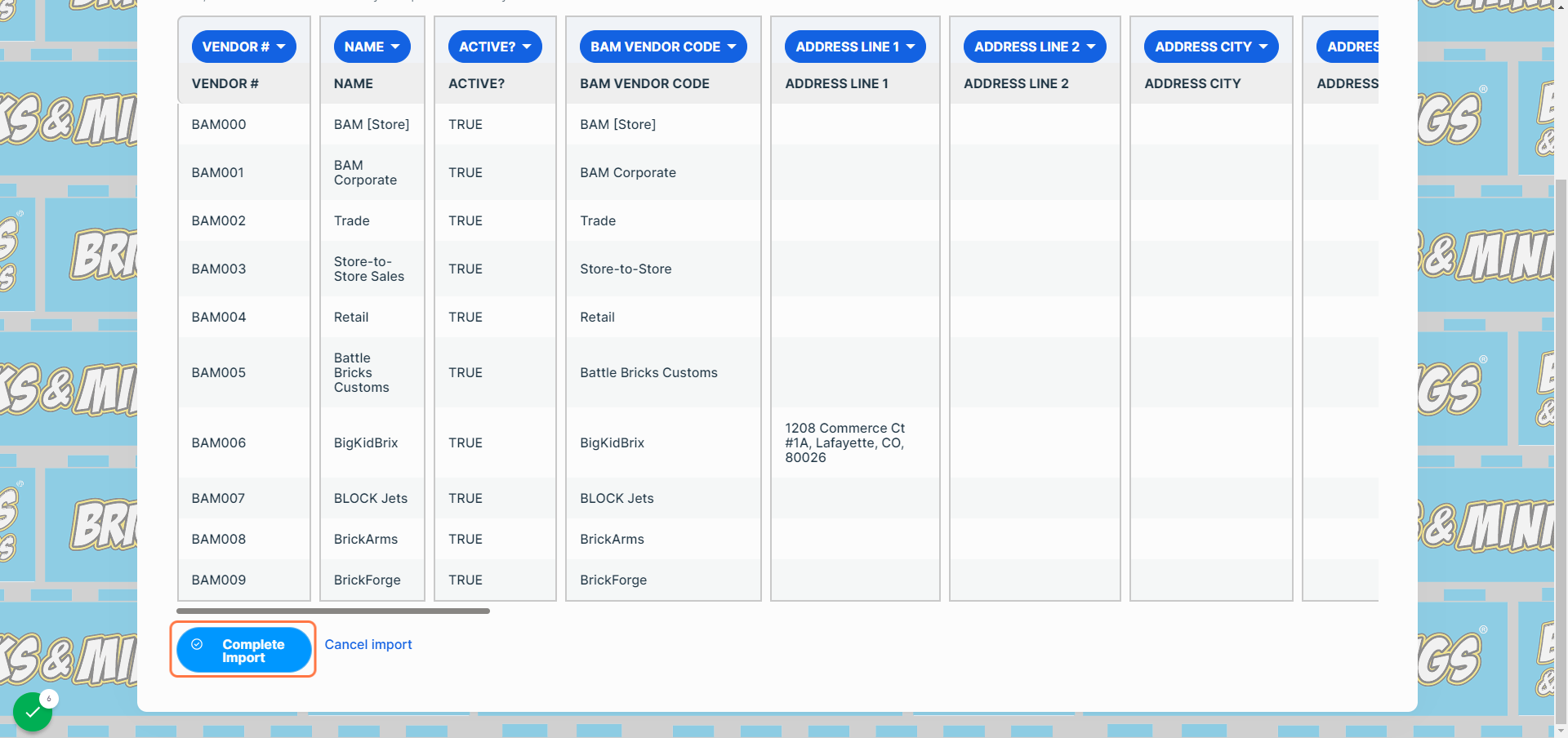
For all stores, the Franchise-Wide vendors should already be in your system. If a new vendor gets added to the BAM Vendor list, and you want to add them to your Heartland System, you will be able to use the BAM Vendor Import Sheet to add the new vendor. You can download this sheet and upload it to your vendors to update your list with the new vendor, as well as update the information for existing vendors.

The following sections explain what each column in the import sheet means and what our standards are for them, both for BAM vendors, as well as vendors your store works with that aren't in the list of BAM Vendors.
For a shorter explanation refer to this list:
Vendor #: A reference number for the current standardized BAM vendors
Vendor Name: The vendor name as listed in the BAM Vendor directory
BAM Vendor Code: The Bam Vendor code, is mostly just the vendor name, but has a few extra codes to account for vendors not on the BAM Vendor Directory. Vendors that are not Franchise-Wide vendors will be listed under one of the following codes: Retail, Store-to-Store, or Store Exclusive Vendor (as explained in the BAM Vendor Code section)
Other fields: There are no specific standards on any of the other vendor fields at this time.
Vendor #
For all stores, existing Franchise-Wide vendors should already be in your system. When adding a new vendor, if they are a BAM vendor listed on the BAM vendor directory, you will be able to find the Vendor # and all other vendor information here: BAM Vendor Import Sheet
For any vendor you are creating, that isn't on the BAM vendor directory, you will want to leave the Vendor # blank so Heartland automatically assigns a vendor number to it.
Vendor Name
Vendor names should be the official name of the company, including capitalization. The BAM Vendor Directory and the BAM Vendor Import sheet have all our current Franchise wide vendors listed with the correct names.
If the vendor you are adding isn't listed in the BAM Vendor Import sheet, a good place to find the official vendor name is by navigating to the bottom of their website and checking how they have it listed with the copyright symbol.
BAM Vendor Code
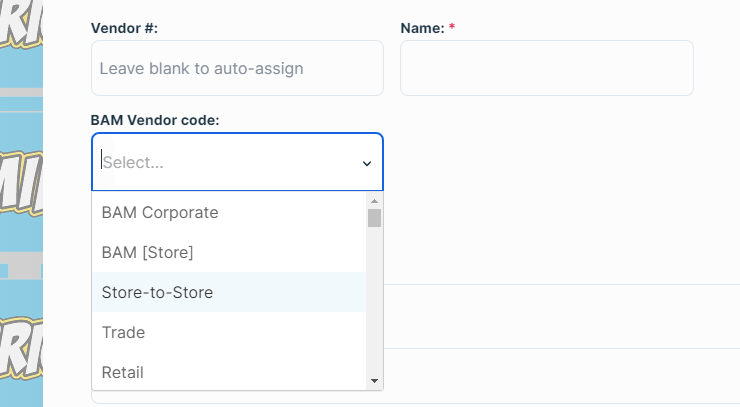
When creating a new Vendor in Heartland, the most important field is the BAM Vendor Code. For Franchise-Wide vendors, such as BrickArms and ToyHouse, the BAM Vendor Code will be the name of the Vendor itself. For any vendors outside of those, we have created a few catch-all Vendor Codes:
Retail: Any sets or other products you purchase at a retail outlet fall under the Retail Vendor Code. This would include outlets such as Target, Barnes & Noble, Costco, and other similar stores.
Store-to-Store: This Code is used for any products purchased from another BAM Franchisee, typically facilitated through the Slack channel "store-to-store-sales".
Store Exclusive Vendor: This field is for any Vendors you have an individual relationship with: Including local MOC builders, and online LEGO/LEGO compatible product Vendors not specifically endorsed by BAM Franchising and vendors you are piloting under the direction of the BAM Vendor team.
BAM [Store]: This field is your store name (for example, BAM Orem), and is used for any products created in your store, such as Make-And-Takes or other similarly generated products.
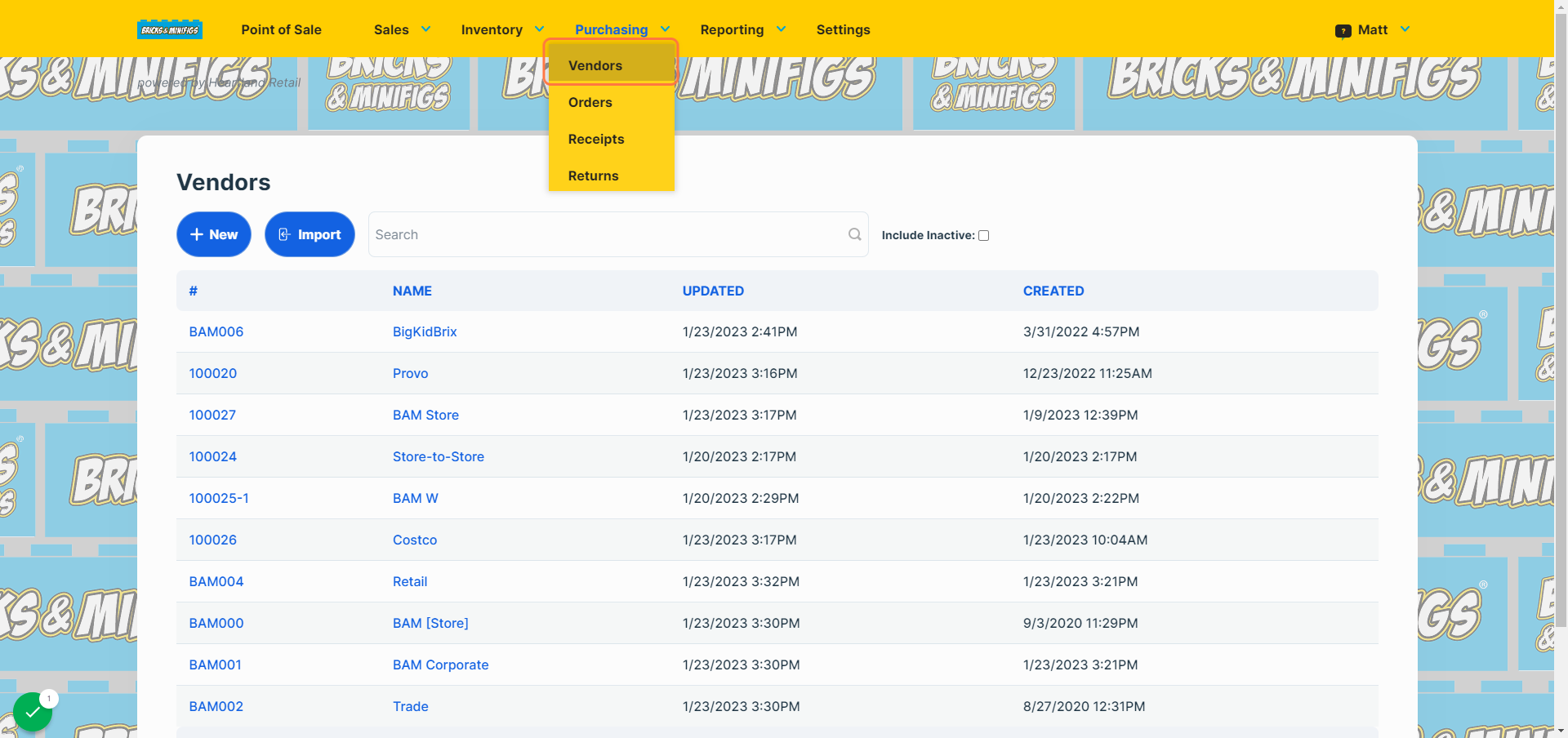
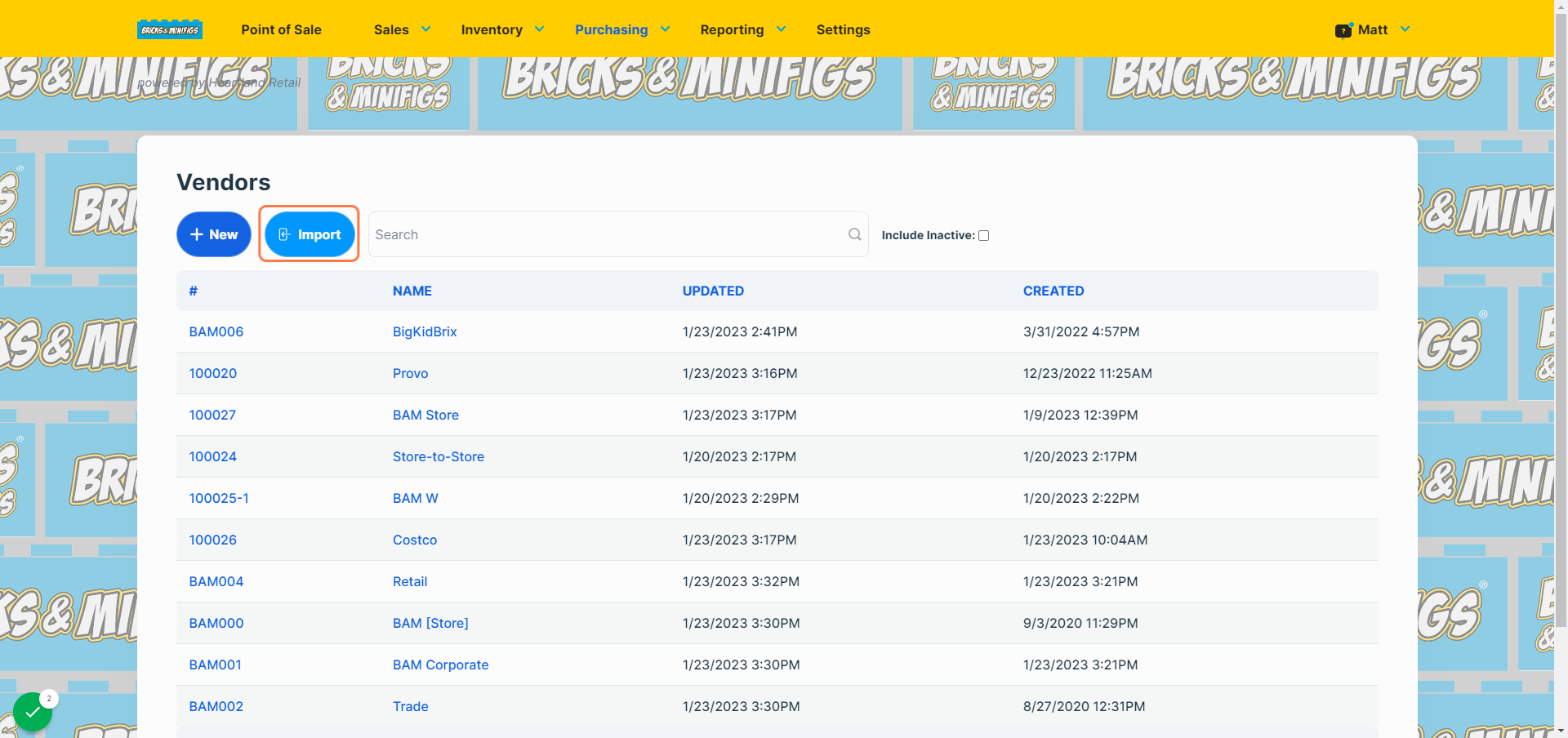
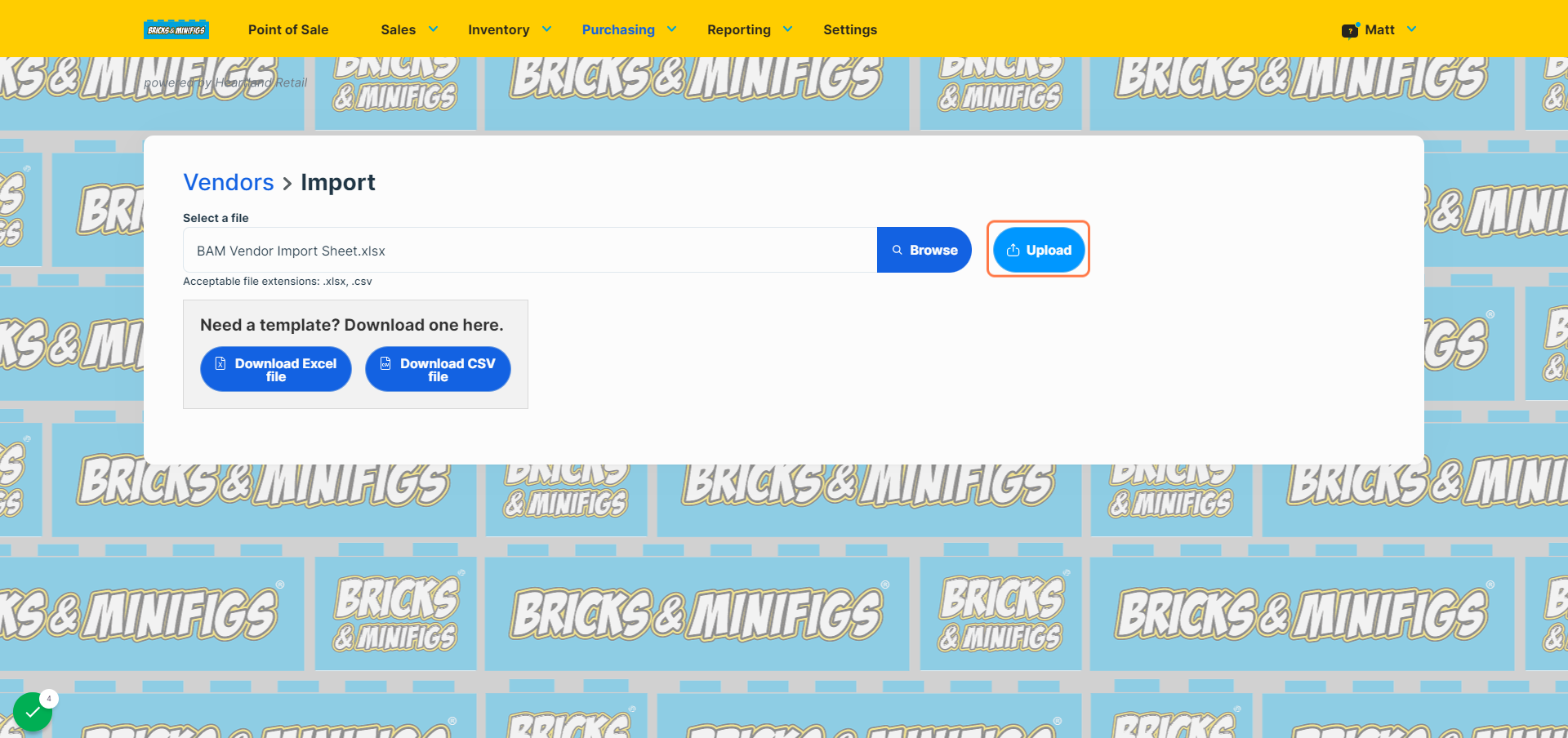
Any time a new Franchise-Wide vendor is added to the BAM Vendor Directory, we will add them to the BAM Vendor import sheet. You can use this tutorial to import the sheet into your vendor list: Importing Vendor Lists
Interactive walkthrough, captured from the company’s help desk (originally an embedded Tango guide), reconstructed step by step:
Other Vendor fields
There are no other fields we require you to fill out, but feel free to add any information as you see fit.